How do I reset my JobStack password?
If you have already established your permanent password and are having trouble logging in:
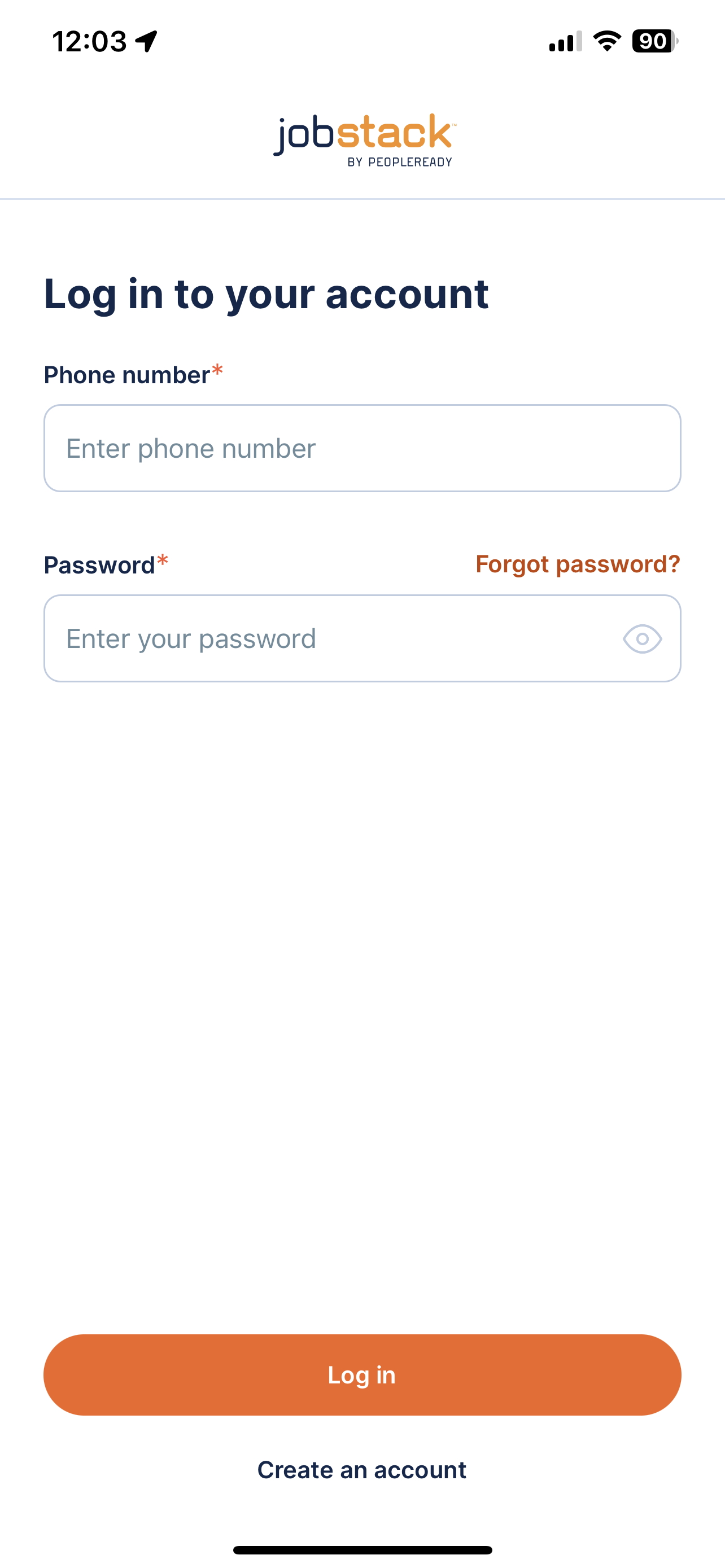
- Visit the JobStack Mobile App.
- Click the Forgot password? button.
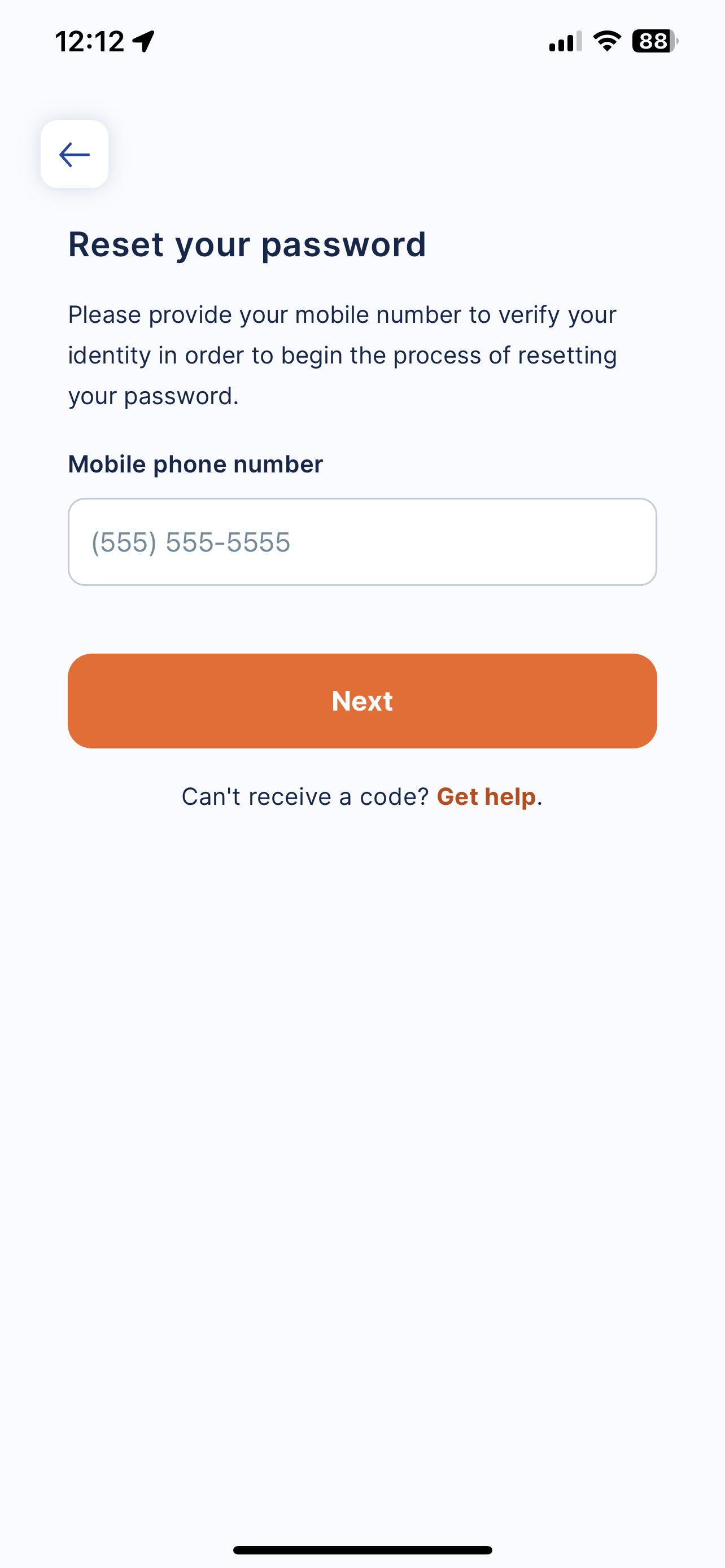
- Enter the phone number associated with your account, then click Next.
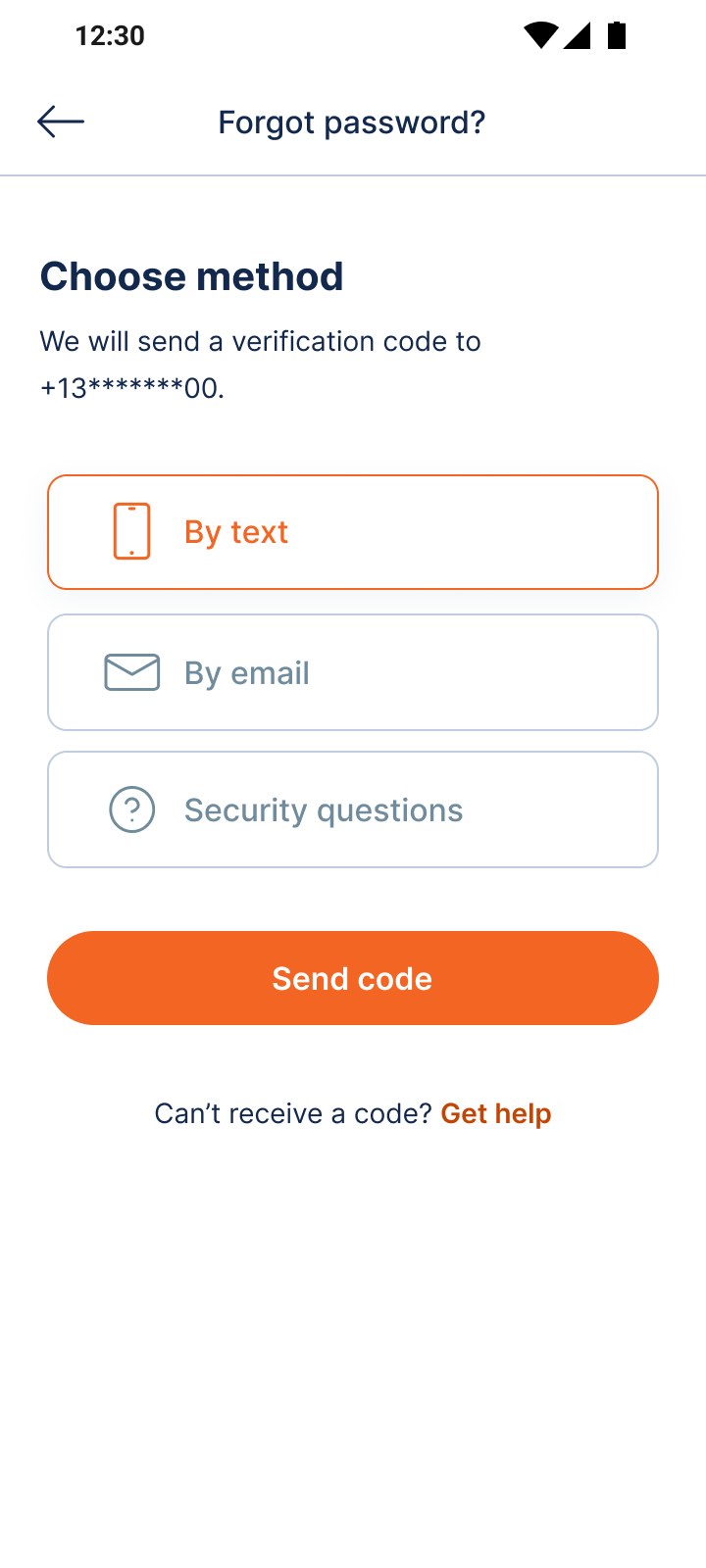
- Choose the best option to receive your verification code and click Send code.
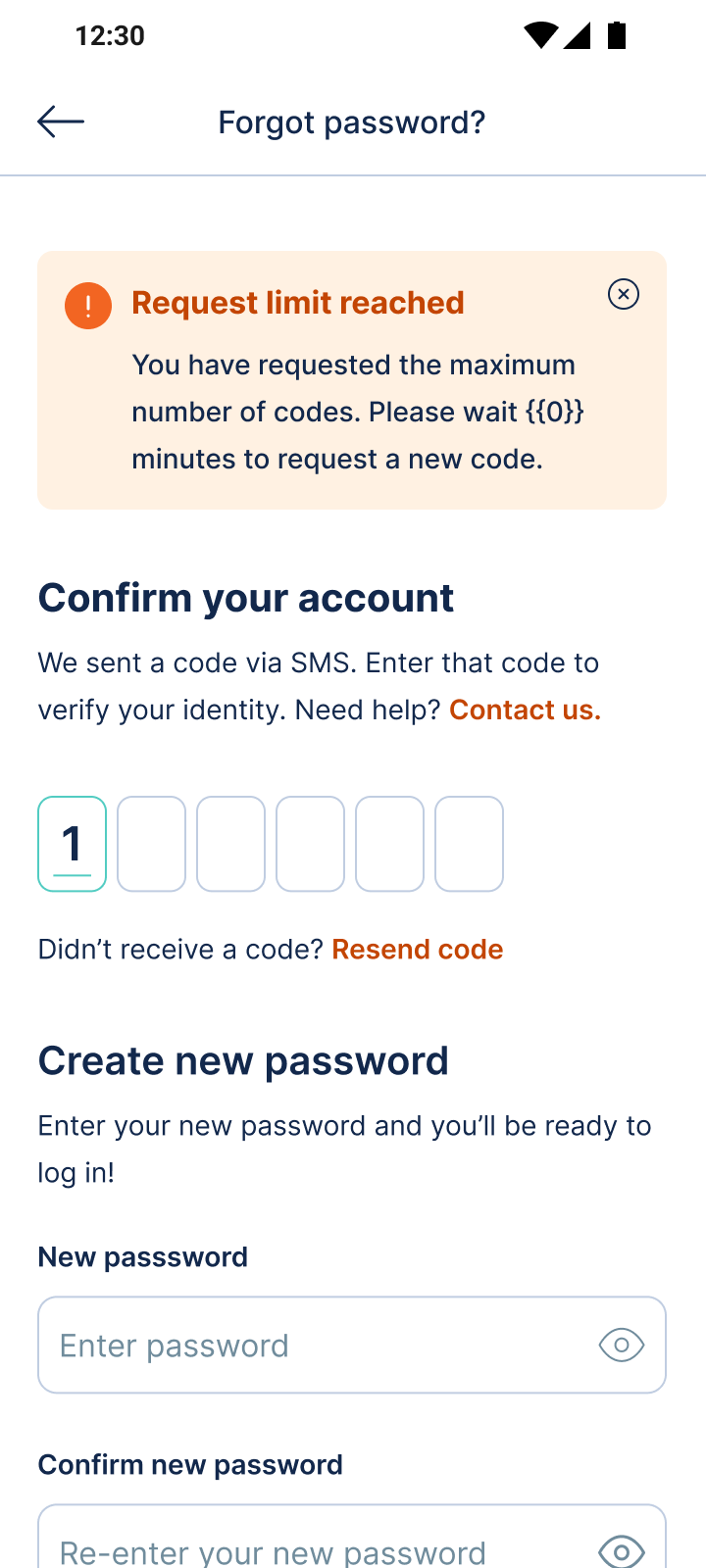
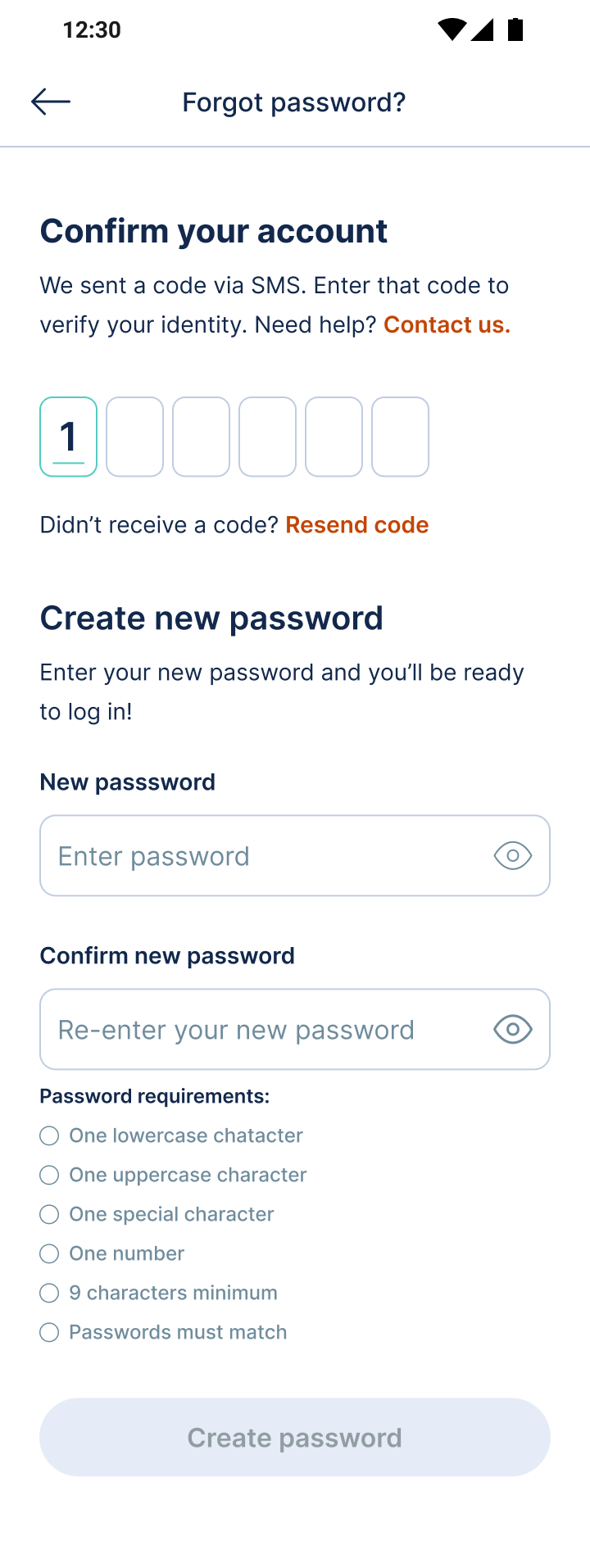
- Check your phone or email for the verification code, then copy and paste it into the box. Next, enter your new password and click Create password.
- You’re all set! You can now use your new password to log in to JobStack.
- If you are trying to establish your password for the first time and are having trouble with the temporary code sent to you. Please email [email protected] for assistance.
Good to know
If you already have an active code
If you back out of the reset flow and re-enter your mobile number again while a code is still valid, you’ll see a banner: “You’ve already received a code — Please use the Resend code button to request a new one.” You’ll be taken straight to the code entry screen instead of choosing a delivery method again.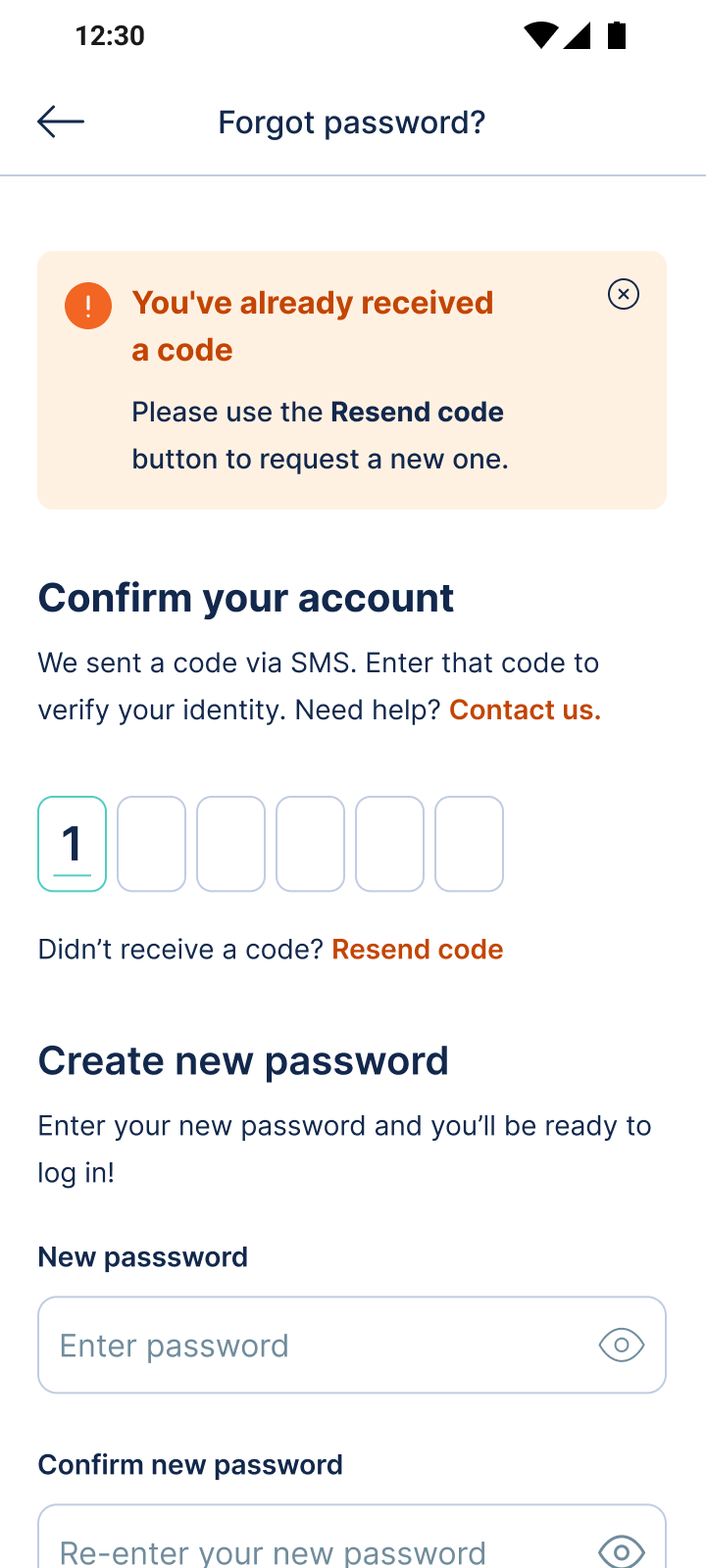
If you’ve requested too many codes
Codes can be requested up to 5 times per hour. After the 5th request, you’ll see a “Request limit reached” screen and will need to wait 30 minutes before requesting another code.